
Why You Should Set Up Meta Automations
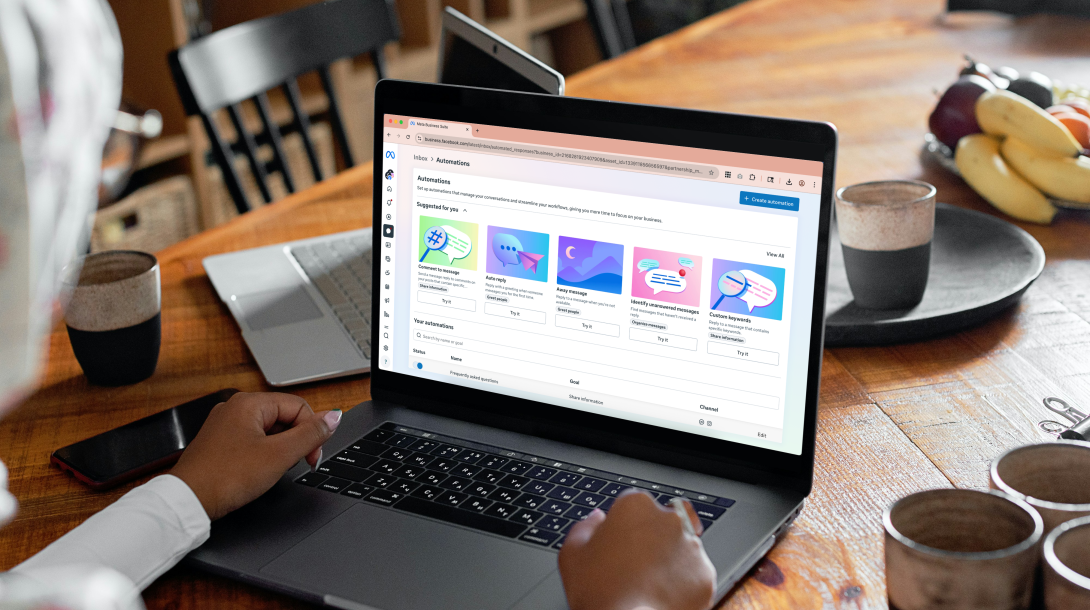
We know most nonprofits have limited capacity to handle every single communication across platforms, that's why automations on Meta platforms are your new BFFs.
Protecting your community and staff from hate and harm is a matter of mitigation. While some disagreements can be solved through conversations offline, sometimes the relentless comments can become more than that, bordering on harassment, defamation, spam and trolling. If you think any of the comments on your social media platforms are harassment, defamation, or threatening, it's important to seek legal and professional help by contacting your local authorities.
Here's our recommendations to help limit spam, trolls, and help your team focus on communicating with people who wish to have a meaningful discussion:
1. Go to Inbox Automations in Meta Business Suite.
Start with the automation templates, and adjust to adapt to your business needs. Each automation is set up with a trigger, "when this happens, x happens." You can then select what action is taken.
Our favourite templates are:
- Auto Reply (to let people know the account is not monitored 24/7)
- Away Message (for when a human is not available to reply and indicate you will get back asap)
- Frequently Asked Questions (a menu for answering common or important questions)
2. We recommend setting up spam filters.
By using the custom automation and keywords function you can set up a custom spam filter. We label ours Custom Automation - Spam Filter.
When new message received, any of the following conditions:
Condition 1: Keywords: Any of the following: deactivated, permanently deleted
Condition 2: Keywords: Any of the following: dear admin
Condition 3: Keywords: Any of the following: permanently removed
Take this action:
Mark As Move to SPAM
If you notice new scams or constant inboxes featuring the same keywords, you can add another condition to filter these.
The cool thing is that you can use this same approach with positive keywords to mark messages for follow-up. For example, if you are running a campaign, you could use the campaign title as the keyword, and then if anybody has inboxed asking questions using the keywords, it can be set up to be marked for follow-up.
3. Have A Master Hidden Word List
You can also go to Settings --> Privacy --> Hidden Words and add common keywords here to filter out more spam messages.
Make a list of things you would not want your followers to see, including specific emojis (keep this handy outside of the app!) For Facebook, you have the option of copy and pasting the same list for your page. Turn on advanced comment filtering, and manage spoilers or spam.
Other Tips
Ensure privacy and sharing settings are adequate for both your page and Instagram. You will want to disable being added to group DMs on Instagram for instance in message controls. For Facebook pages, you can toggle on hide posts and comments with profanity. Set up reviewing tags on posts that people can add or tag your business in.
Remember: you can restrict or block users. Sometimes hiding a comment is not enough.
If you don't want people to have the ability to comment, Facebook pages and Instagram profiles don't let you disable all comments on every post before posting. You have to disable comments at the time of posting by going to your post and selecting that option in the ... menu.
Utilize Your Meta Business Suite Inbox
All your comments and direct messages (DMs) in one place. Easily filter, sort, mark, and categorize the people who are messaging you, and assign conversations to the appropriate team member. You can learn more some of the key inbox features here.